On a Sunday morning, the congregation needs to see the lyrics of the song being sung, the lobby screen is better used for this week's announcements, and up on the platform the keyboard player just wants the next verse without turning around to check the main screen. If your room has two or three screens, the real question isn't whether you can use them all, it's how to give each one the right content without rebuilding the setup every service. Multi-screen church projection exists for exactly this: keeping what the congregation sees, what the lobby sees, and what the stage sees separate, with each screen carrying its own feed.
Why does multi-screen church projection often complicate service prep?
In many churches, the setup grew one piece at a time. A projector for the congregation first, then a lobby screen added so late arrivals had something to look at, then a stage monitor added once the worship team grew. The result is three screens, but often just one feed duplicated across all of them, or one person at the booth manually switching windows based on a guess about what each screen should be showing.
The problem isn't the number of screens, it's the lack of a clear rule: which screen gets the Bible text, which gets the songs, which gets something other than the main content. Once that rule is set, the booth operator just follows the order of service, and each screen keeps showing what it was assigned to show.
How do you pick the output screen for each destination?
Every screen connected to the computer can display different content, with its own template. In practice, that means the congregation screen can follow the current song while the lobby screen stays on an announcement banner, and the stage screen shows something else again.
The choice is made in the Projection tab of the settings, where you match a physical output (the screen as detected by the computer) to a content type: global content, the Bible, songs, the playlist, lower thirds, a preview, or the stage display. This is where you decide, once and for all, that one screen serves as the stage display and another serves the congregation.
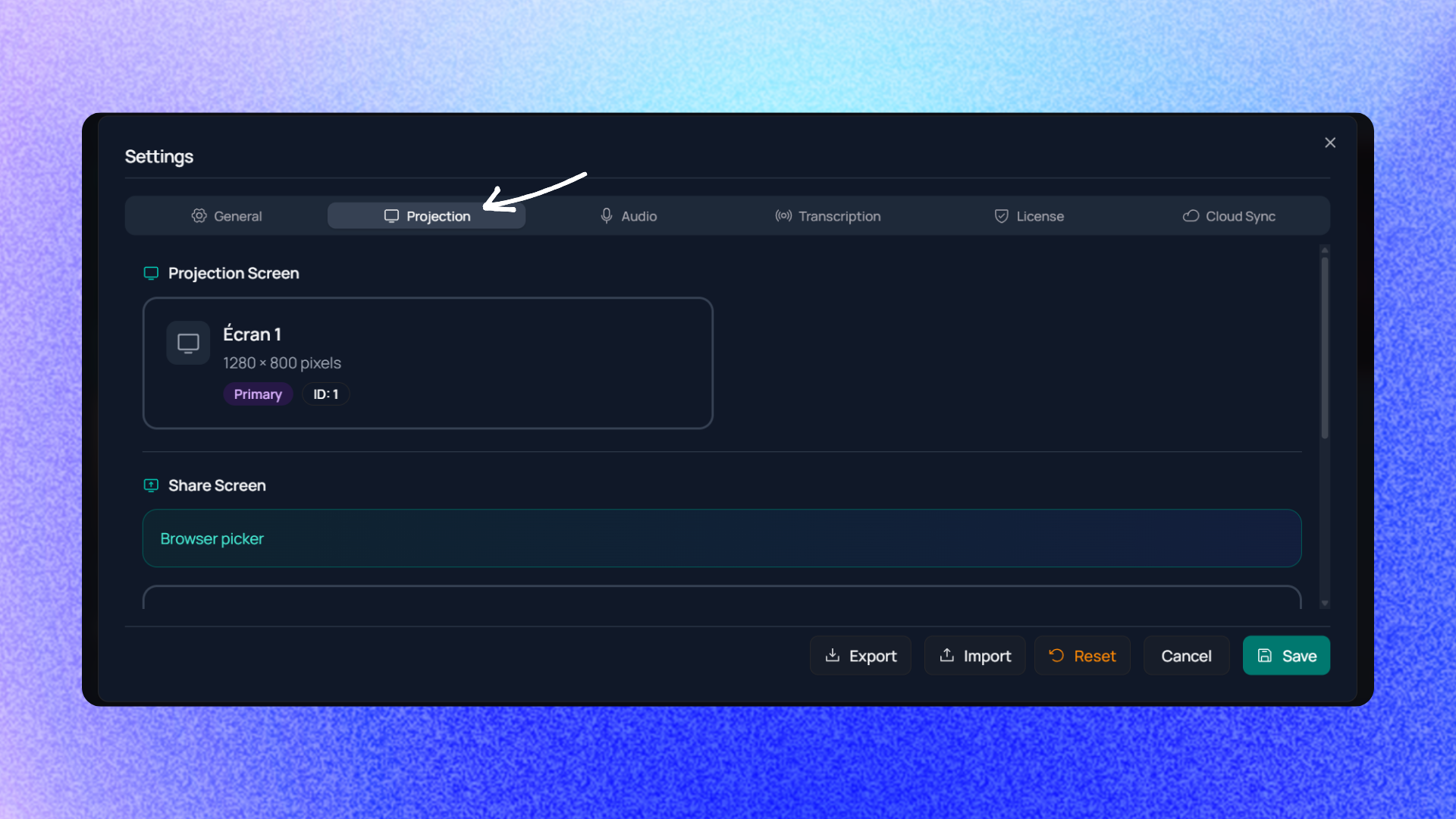
This step can feel a little technical the first time, especially while you're still figuring out how the computer identifies each screen. The documentation on managing multiple outputs walks through the process step by step, and the page on the desktop application covers the basic hardware requirements for connecting several screens to one computer.
Once the outputs are configured, they reopen automatically when the application starts. You won't need to redo this setup every service: the computer remembers last week's configuration, and each screen goes back to its assigned role.
What can each screen show once the output is set?
An output can show, depending on what you choose, the global content (whatever is currently being projected for the congregation), the Bible, songs, a playlist prepared in advance, lower thirds, a preview of what's coming next, or the stage display. This choice isn't locked in permanently either; you can decide that a lobby screen runs a banner during welcome time and then switch it to something else later if the need changes from one Sunday to the next.
The practical benefit is that a visitor arriving late and walking through the lobby doesn't just see a random song slide with no context; they see whatever was planned for that space. And the booth operator doesn't need to manually duplicate content across several windows: each output follows its own logic once it's configured.
What does the stage display give musicians and speakers?
This is often the most useful screen in the room, and the one that gets the least attention during setup. The stage display shows musicians and speakers the lyrics of the current song, the verse currently being read, and a message the booth can send live, for example to flag a change of plan without walking across the room.
Beyond those three elements, the stage display template can also hold a clock, a countdown, a timer, the Bible reference shown separately from the lyrics, song information such as title and writer, or even a preview of what's being shown on another output. Each church builds its own stage display around what the team actually needs; some groups want only the clock and the lyrics, others always add a timer to pace the worship set.
How do you manage time on stage without losing track?
Each timer element placed on the stage display template runs its own countdown, with duration presets and warning thresholds. That means you can set up a five-minute countdown for the worship set and a separate two-minute one for an announcement, without one interfering with the other.
If worship runs a little long, which happens more often than anyone plans for, a countdown can be extended live without restarting it from zero. The cumulative drift stays visible, so the speaker or worship leader knows exactly how much time they have left, without doing mental math mid-service.
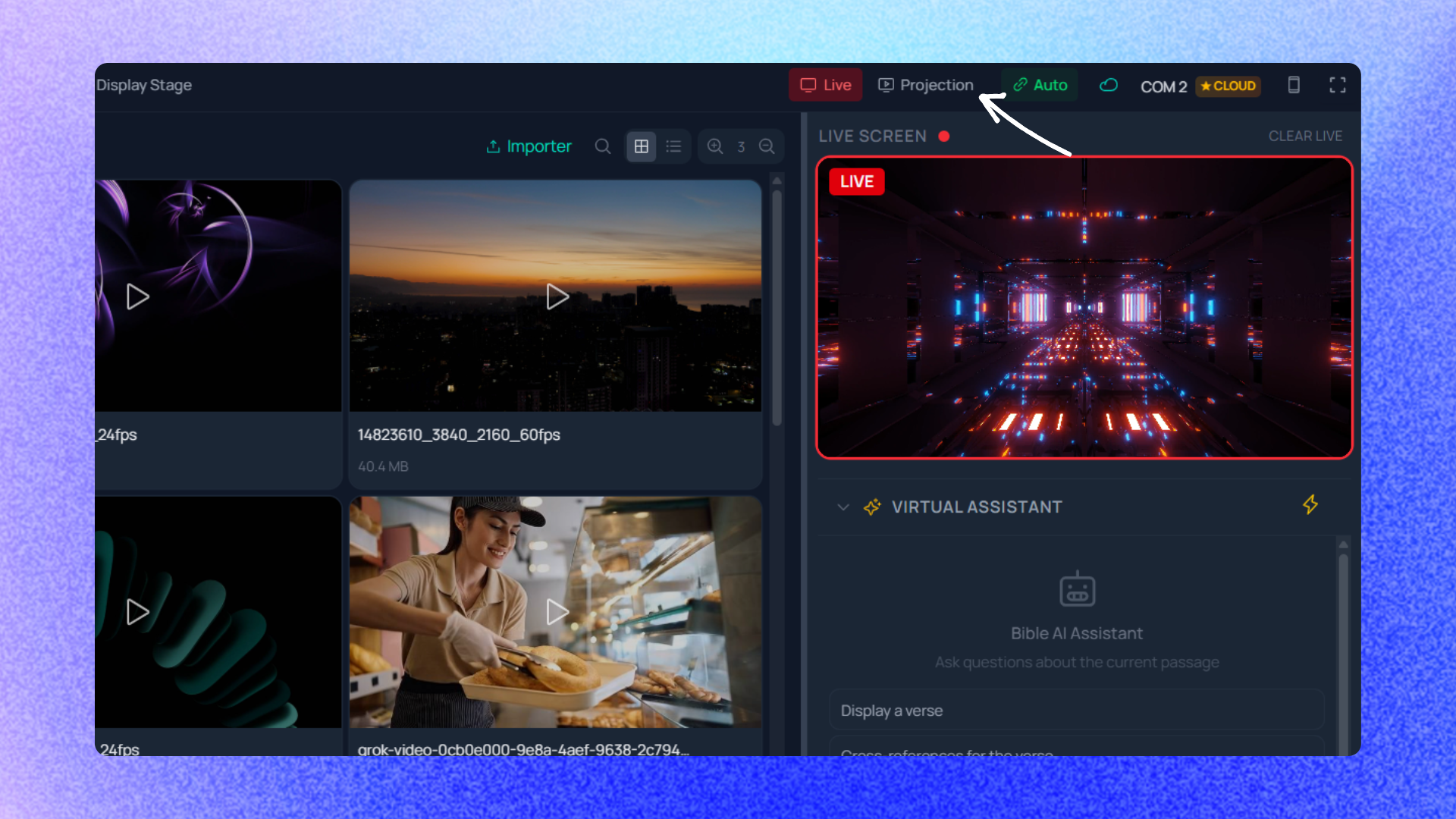
These adjustments are made from the control bar in real time, while the rest of the projection keeps running normally on every other screen.
How do you match text size to the distance from the stage?
A stage display sitting on the floor a few feet from the musicians doesn't have the same readability needs as a screen mounted high at the back of the room. The text size of each element is set directly in the template, which lets you adjust, for instance, the size of the lyrics or the current verse based on the actual distance between the screen and the people who need to read it.
This is a one-time adjustment, best tested from the stage itself if possible, rather than judged only from the preview on the booth computer. Once the template is adjusted, it carries over automatically every service.
Where do you start if your room already has several screens?
If your church already has two or three screens but they all show the same thing, the first step is to open the Projection tab in settings and decide, for each detected output, what it should display. The documentation on managing multiple outputs walks you through that first configuration, and the pricing page explains what's available for projection features depending on your situation.
Once that groundwork is in place, everything else follows naturally: the booth prepares the service as usual, and each screen keeps doing its job without extra manual work.